Apple TV setup
IPTV on Apple TV: set up an M3U playlist or Xtream login with Onyx
Onyx IPTV has a native Apple TV app built for the Siri Remote. Add the M3U playlist or Xtream Codes login from your IPTV provider once, and live TV with the programme guide, movies and series are on your big screen.
Onyx IPTV is a player only. It does not provide, host or sell channels, movies or series. You need a subscription from an IPTV provider and are responsible for the rights to the content you play.
What you need
- An Apple TV HD or Apple TV 4K with tvOS 17 or later.
- Onyx IPTV from the App Store (free). One listing covers iPhone, iPad and Apple TV.
- From your provider, one of: an M3U / M3U8 playlist URL, an Xtream Codes login (server URL, username, password), or a get.php link that contains those.
- Optional: an EPG (XMLTV) URL if you use an M3U playlist and want the programme guide.
Set up Onyx on Apple TV
Install Onyx from the App Store on Apple TV
Open the App Store on your Apple TV, search for Onyx IPTV and select Get. It is the same listing as the iPhone app, so an Onyx Pro subscription carries over to Apple TV on the same Apple Account.
Open Onyx and connect your source
A short intro shows what Onyx can do. You can skip the Onyx Pro step with Continue for free. On Connect your source choose Add Connection, or Start Demo to explore a sample catalogue with live channels, guide data, movies and series first. Later you reach the same screen under Settings → Manage connections.
Choose Xtream or M3U
At the top of New Connection pick Xtream for a server URL, username and password, or M3U for a playlist URL. Give the connection a name, for example “Living Room”, so you can tell providers apart.
Enter the details with the Siri Remote
Select a field and type on the on-screen keyboard. Typing a long URL is faster with the keyboard notification that appears on a nearby iPhone, where you can also paste. The server URL usually looks like http://host:port. If your provider sent a get.php link, enter it as the URL: Onyx recognises it and sets up the Xtream account with the username and password inside it.
Add the guide and connect
Xtream accounts load the EPG with the login. For an M3U playlist enter your provider’s XMLTV address in EPG URL (optional). Select Connect: Onyx checks the login with your provider before saving and tells you right away if the password was rejected, the account has expired or the server does not answer.
Start watching
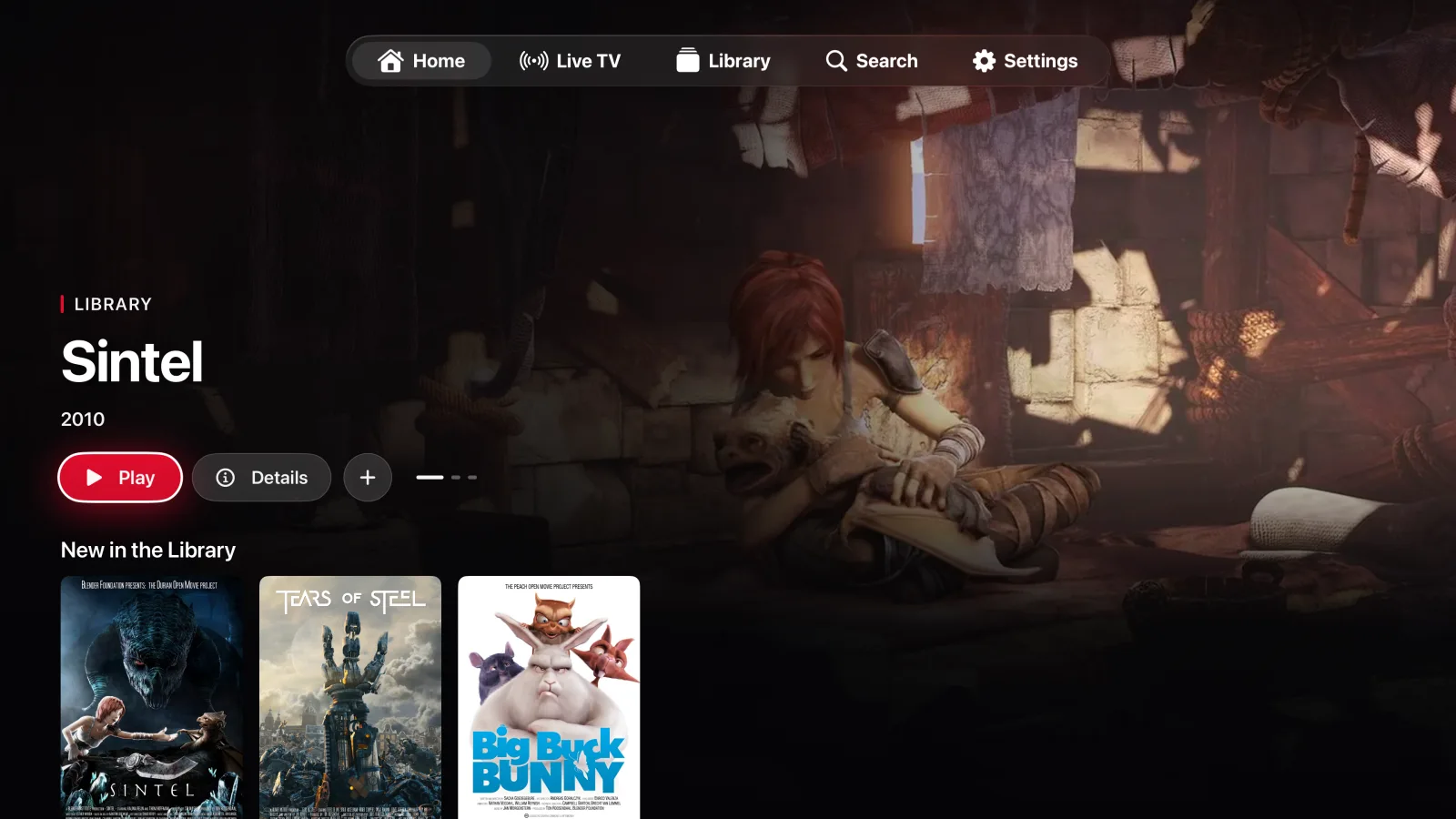
Onyx loads your catalogue, sorts channels into groups and separates live TV from movies and series. Use the tabs at the top: Home, Live TV, Library, Search and Settings.
Skip the typing: iCloud sync with Onyx Pro
Entering a server address with a remote takes a while. With Onyx Pro, iCloud sync brings the setup from your iPhone or iPad to Apple TV, as long as both are signed in to the same Apple Account.
- Connections: add your provider on iPhone and it appears on Apple TV. Login details travel through your iCloud Keychain.
- Favourites, history and progress: continue a movie on the TV where you stopped on the phone.
- Preferences: hidden and reordered categories and the parental PIN follow you between devices.
- Check the status under Settings → iCloud on Apple TV.
Watching on Apple TV
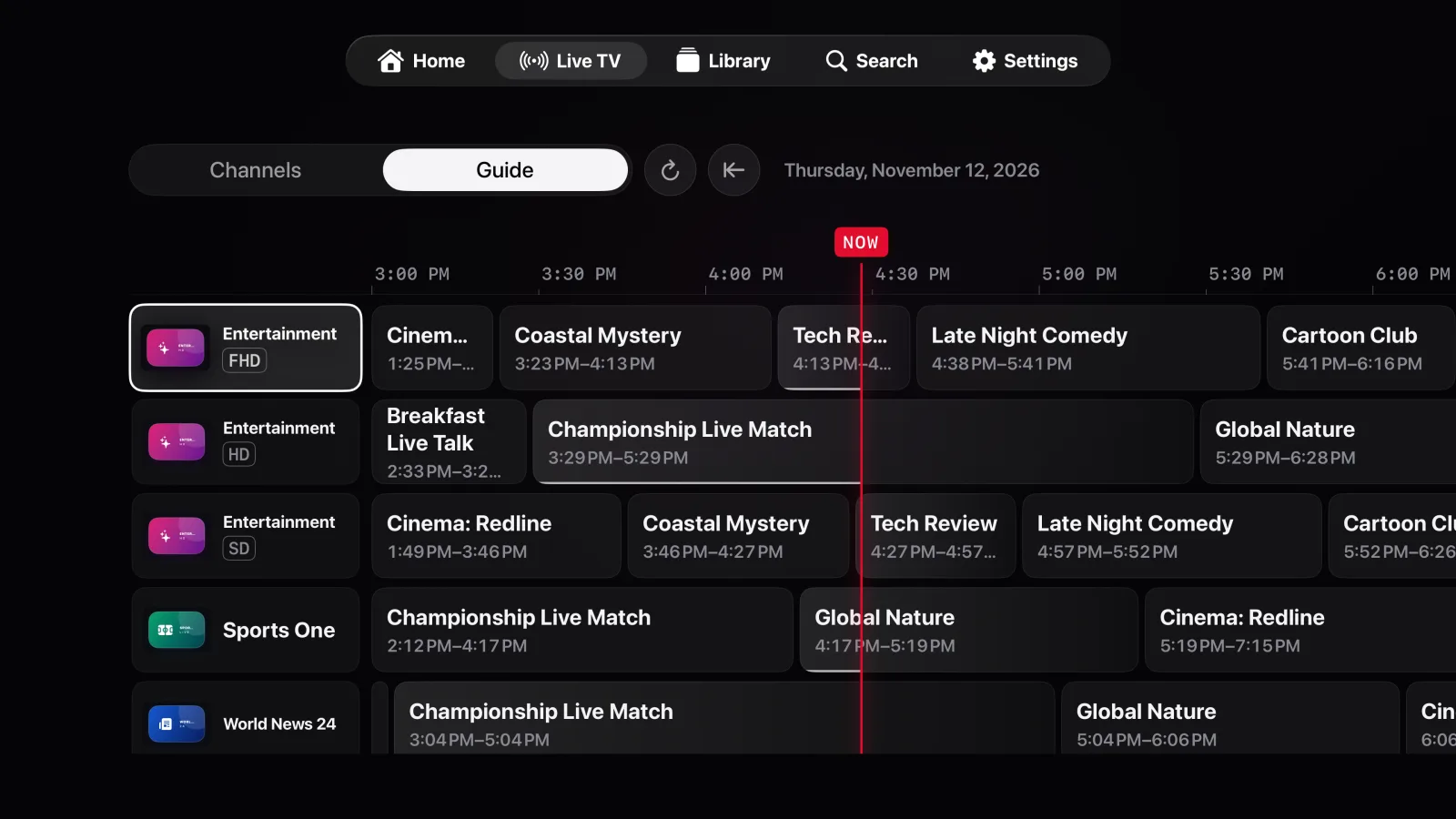
- Live TV: the channel list shows the running programme, a progress bar and time left. Switch to Guide for the full EPG grid with a now-line.
- Catch-up: if your provider keeps an archive, finished programmes can be replayed, and the “Missed something?” shelf collects them.
- Library: movies and series with posters, cast and episode lists. Continue Watching on Home resumes where you stopped.
- Formats: Onyx has two engines, the built-in VLC engine and Apple’s native player, and picks one for each stream; containers tvOS cannot play, such as MKV or AVI, always go to VLC. For Xtream accounts you can choose whether live channels load as MPEG-TS or HLS.
- Player settings: under Settings choose the playback profile (Automatic, AVPlayer or VLC), the VLC decoder, deinterlacing, the live buffer and the default aspect ratio.
Free and Onyx Pro on Apple TV
- Free: one provider connection, live TV with the guide, movies, series, search and the demo playlist.
- Onyx Pro (monthly or yearly): unlimited provider connections, unlimited favourites, parental PIN and category locks, iCloud sync and an extended history.
- The yearly plan starts with a one-week free trial for new subscribers. Subscriptions renew automatically and can be cancelled any time in your App Store settings.
Questions about Onyx on Apple TV
Does Onyx include channels?
No. Onyx IPTV is a player for the IPTV service you already have. It does not provide, host or sell channels, movies or series. You add the M3U playlist or Xtream login from your own provider.
Which formats does the Apple TV app play?
M3U and M3U8 playlists by URL and Xtream Codes logins, with live streams as MPEG-TS or HLS. Movies and series in containers tvOS cannot play natively, such as MKV or AVI, run through the built-in VLC engine. The programme guide comes from your Xtream account or an XMLTV URL.
Do I have to type everything with the Siri Remote?
No. You can type on a nearby iPhone through the Apple TV keyboard notification. With Onyx Pro, iCloud sync brings connections you added on iPhone or iPad to Apple TV.
Is Onyx free on Apple TV?
Yes. The app is free with one provider connection. Onyx Pro is an optional monthly or yearly subscription, and the yearly plan starts with a one-week free trial. One subscription covers iPhone, iPad and Apple TV on the same Apple Account.
Can I try it without a provider?
Yes. Choose Start Demo during setup or Demo under Settings → Manage connections. The sample catalogue needs no account.
Does Onyx collect data?
No. The App Store privacy label is Data Not Collected. There is no account, no analytics SDK and no tracking. Credentials stay in the Keychain on your device, and optional iCloud sync uses your own iCloud account. See the privacy policy.
A stream does not play on Apple TV. What can I do?
Check that the same stream works in your provider’s recommended player and that your plan has not reached its simultaneous-stream limit. Under Settings set the playback profile to VLC, or, for an Xtream account, edit the connection and set the live stream format to MPEG-TS or HLS. The setup guide has more tips.
Bring your IPTV to the big screen
Free download for Apple TV, iPhone and iPad. Try the demo first if you like.